Normal mode
Normal mode is the point-and-click way to build and change your plan. Every setting has a field, a dropdown or a checkbox, and every change shows you exactly what it will write before anything is saved.
A switcher at the top of the Configuration tab flips between Normal and Advanced. Advanced shows the same configuration as an editable file; see Advanced mode for the full reference. Both views edit the same configuration, so you can switch back and forth freely. Normal mode opens by default, and the page remembers if you prefer Advanced.
Strategies and bots
A plan is two things: a strategy that describes the trade you want, and the bots that run it, one bot per time of day, strike and size you want on. Set something once on the strategy and every bot built from it inherits it. A bot only needs what makes it different: usually a time, a credit or delta, and a size.
In the configuration file a strategy is a templates: entry, and a bot names it with
template:.
Account limits
The first card on the page holds the limits that apply to every bot in the configuration:
- Daily loss limit: no new entries once the day is down this many dollars. Off when empty.
- Keep in reserve: an entry is skipped if it would leave less than this much spare in the account. Empty means the platform minimum. You can only raise it: a number at or below the platform minimum saves, and the platform minimum still applies.
- Stops per day, all bots: no new entries after this many stops across every bot. Off when empty. A stop here is an exit at a loss (a delta stop or a loss stop), not a profit target, trailing stop or timed close, and the day's count carries over a restart.
- Pause new entries: every bot skips its entries until you resume trading. Open positions
stay watched. Like every change here it takes effect when TradeMint next starts, and while it is on, TradeMint
starts paused every time it starts: resuming lifts the pause until the next start. Switch it off here to stop
that; switching it off does not lift a pause already in force, so resume with the Trading switch
or
/resume. - New bots start switched on: when off, a bot you add trades nothing until you switch it on.
Click the pencil to change them. The save shows the same review as every other change.
Numbers as you say them
Deltas are typed as whole numbers and fractions as percents: a 15 delta short leg is 15, a
50% profit target is 50. The unit sits inside the box. The configuration file keeps its own
numbers (-0.15, 0.5), and a field you do not touch is left exactly as it was
written. A delta takes its sign from the side it trades, negative for puts and positive for calls, so a stop
cannot end up on the wrong side of the entry.
Reading a strategy
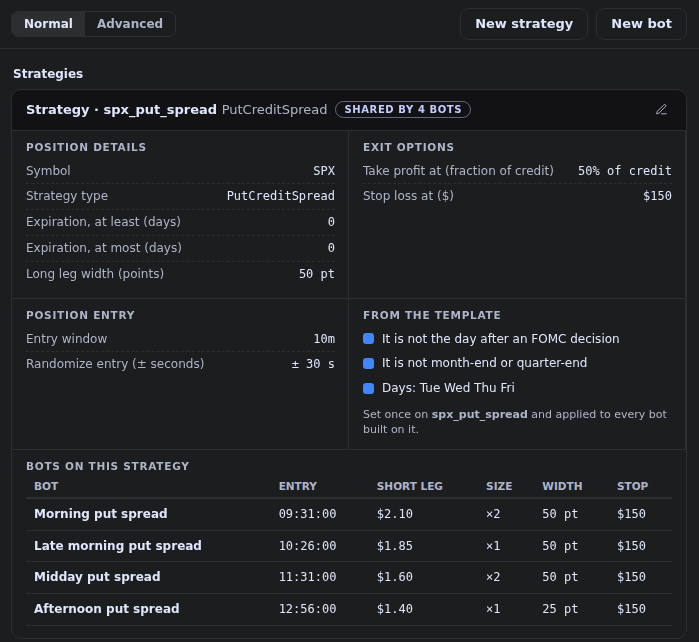
Each strategy is a card with four groups:
- Position details: the symbol, the expiration, the strategy type, how the short leg is chosen (on a debit spread, the leg you buy) and how far away the other leg is.
- Exit options: profit taking, the stop loss, and a time to close if neither hits.
- Position entry: the entry window, randomized timing and the size.
- From the template: the filters that decide whether a bot trades today, written as plain sentences ("It is not month-end or quarter-end", "Days: Tue Wed Thu Fri").
A value in grey is inherited, and the note under it says where from. Below the groups, Bots on this strategy lists every bot built on it with its entry time, short leg, size, width and stop. Click a row to open that bot.
Editing a strategy
Click the pencil on a strategy. The editor opens on the settings most plans use plus anything this strategy already sets; All settings shows the rest. An empty field shows, in grey, the value the bots get if you leave it empty: an inherited value or the default.
Change what you want and click Review changes. Every bot built on the strategy follows the change. Renaming a strategy renames it on every bot that uses it, in the same save.
Settings that are a group of values have a small form of their own: the trailing stop (by profit, dollars or delta), take profit in steps ("at 50% captured, close 50% of the position"), what happens to the long leg after a stop, when a delta stop is checked, and an iron condor's put-side and call-side stops. A field with unsaved changes is counted beside Save and Restart, which waits until the open editor is saved or cancelled.
Starting a new strategy
The + button at the top of the page adds a bot, a strategy, or a strategy from a built-in template. New strategy offers three starts:
- Define a new plan: an empty strategy of the type you pick. Fill in the settings yourself.
- Start from a built-in template: a shipped strategy, copied into your file so you can adjust it.
- Copy one you already run: a duplicate of one of your strategies. The original keeps running untouched.
Bots
Every bot appears as a card. Click the pencil to edit it: only the fields you change are written, and everything else, including what it inherits from its strategy, stays as it was. New bot (under +) opens the same form, empty. With the switcher on Advanced, New bot takes a pasted configuration snippet instead.
The copy icon beside the pencil duplicates a bot: the copy has every setting of the original and is named "Copy of" the original. Like a new bot, it shows the review first and nothing is written until you click Save; once saved, it opens for editing.
Review before every save
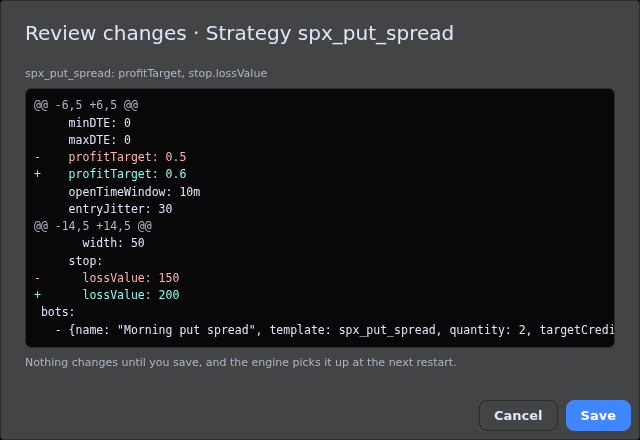
Every save in Normal mode shows the change first: the lines of your configuration it will remove and add, and any problem it would raise. Click Save to write it, or Cancel to change nothing.
- A change with a problem that would stop a bot from trading cannot be saved. The review says what is wrong, and Save stays off until it is fixed.
- A warning, such as a setting that is spelled in a way TradeMint does not read, is shown but does not
stop the save. So is a setting this trade type does not use, such as an exit its position type does not
apply, or
crossOnFinalRetryon anything but a put or call credit spread: it saves, and does nothing. - Every save keeps a copy of the previous version, so any change can be restored from History.
- Changes apply the next time the engine restarts. The Save and Restart button does that.
Ask TradeMint AI
On the right of the page, TradeMint AI takes a request in plain English, such as "make the 10:30 bot 5 wide and stop it out at a 200% loss". Press Enter (Shift+Enter starts a new line) and it opens the same review as any other save: the lines it would change, with a short note of what it understood. Nothing is written until you click Save.
- It works in Normal and Advanced mode. In Advanced, save or discard your own edits in the editor first; the editor shows the result after you save.
- It changes only what Normal mode's forms can change: your strategies and bots. A setting it cannot change is named in the review rather than guessed at.
- It can remove bots, so "replace my 0DTE bots with these" followed by a list works in one review. A list of up to about 100 bots fits in one message. A change to that many bots takes a minute or two to work out, and the box says it is still working.
- It remembers the conversation for the configuration you have open, so a short answer to its question, such as "replace" or "yes", is enough. Opening another configuration starts a new conversation.
- A change to a bot's size, whether it trades, its strategy, its days or its entry filter, and every bot it would remove, is called out at the top of the review, so it cannot slip past. So is a filter taken out of a bot's entry filter that your request did not mention.
- It writes entry filters only from TradeMint's own filters. A filter from another platform is carried over only when a TradeMint filter skips exactly the same days; otherwise it asks you instead of changing those bots, so no condition is invented or quietly left out.
- If your request is unclear, it asks a question instead of making a change.
- It does not give trading advice. Tell it what to set, not ask it what you should set.
- Each workspace has 30 requests a day, and only a reply that proposes a change counts. Its questions, your answers to them and a reply that fails are free. The count of what is left sits under the box. It answers up to 100 messages a day in all.
To work out the change, your request, the conversation so far and your configuration are sent to Google's Vertex AI, with passwords, IBKR usernames, account numbers and email addresses removed first. Never type a password into the box: TradeMint AI never needs one. Nothing is sent unless you use TradeMint AI. See Subprocessors and Privacy.
Entry filters and size rules
A bot can carry two rules written as simple expressions: an entry filter that decides whether it trades at all, and a size factor that scales how big the entry is. The rules editor offers your own named filters first, then the built-in building blocks and live market values, so most rules are a couple of clicks. You can define a new named filter without leaving the dialog.
The same dialog shows why the bot did not enter today, with times in market hours, so you can see a filter working without digging through logs.
Safety
Everything in Normal mode goes through the same protections as Advanced mode: your edit is checked before it is written, a copy is kept for every change, a configuration that would stop your bots from trading can never be saved, and every change is recorded with who made it. Editing is only available when you are signed in.